
Click, drag, or scroll with the touchpad
È possibile fare clic, doppio-clic, trascinare e scorrere usando solo il touchpad, senza usare altri pulsanti.
Touchpad gestures are covered separately.
Secondary click
You can customize your touchpad's secondary click (right click) action.
Two-Finger Push: Push anywhere with 2 fingers.
Corner Push: Push with a single finger in the corner.
Select Secondary Click Method
Open the Activities overview and start typing Mouse & Touchpad.
Click Mouse & Touchpad to open the panel.
Click Touchpad in the top bar.
In the Clicking section, choose the preferred click method.
Tap to click

You can tap your touchpad to click instead of using a button.
Per fare clic, battere sul touchpad.
Per fare doppio-clic, battere due volte.
To drag an item, double-tap but don’t lift your finger after the second tap. Drag the item where you want it, then lift your finger to drop.
Se il touchpad supporta i battiti con più dita, fare clic col pulsante destro battendo contemporaneamente con due dita. In caso contrario, è necessario usare i pulsanti hardware per fare un clic col pulsante destro. Per maggiori informazioni su come fare un clic col pulsante destro senza un secondo pulsante sul mouse, consultare Simulare il clic col pulsante destro.
Se il touchpad supporta i battiti con più dita, fare clic col tasto centrale battendo con tre dita contemporaneamente.
When tapping or dragging with multiple fingers, make sure your fingers are spread far enough apart. If your fingers are too close, your computer may think they’re a single finger.
Enable Tap to Click
Open the Activities overview and start typing Mouse & Touchpad.
Click on Mouse & Touchpad to open the panel.
-
In the Touchpad section, make sure the Touchpad switch is set to on.
The Touchpad section only appears if your system has a touchpad.
Switch the Tap to Click switch to on.
Two finger scroll
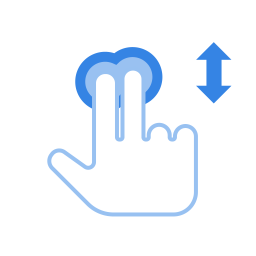
You can scroll using your touchpad using two fingers.
When this is selected, tapping and dragging with one finger will work as normal, but if you drag two fingers across any part of the touchpad, it will scroll instead. Move your fingers between the top and bottom of your touchpad to scroll up and down, or move your fingers across the touchpad to scroll sideways. Be careful to space your fingers a bit apart. If your fingers are too close together, they just look like one big finger to your touchpad.
Lo scorrimento con due dita potrebbe non funzionare su tutti i touchpad.
Enable Two-finger Scrolling
Open the Activities overview and start typing Mouse & Touchpad.
Click on Mouse & Touchpad to open the panel.
In the Touchpad section, make sure the Touchpad switch is set to on.
Switch the Two-finger Scrolling switch to on.
Edge scroll
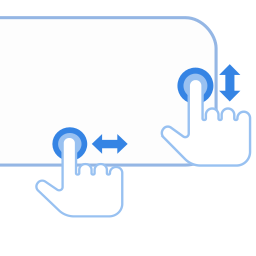
Use edge scroll if you want to scroll with only one finger.
Your touchpad's specifications should give the exact location of the sensors for edge scrolling. Typically, the vertical scroll sensor is on a touchpad's right-hand side. The horizontal sensor is on the touchpad's bottom edge.
To scroll vertically, drag your finger up and down the right-hand edge of the touchpad. To scroll horizontally, drag your finger across the bottom edge of the touchpad.
Edge scrolling may not work on all touchpads.
Enable Edge Scrolling
Open the Activities overview and start typing Mouse & Touchpad.
Click on Mouse & Touchpad to open the panel.
In the Touchpad section, make sure the Touchpad switch is set to on.
Switch the Edge Scrolling switch to on.
Natural scrolling
You can drag content as if sliding a physical piece of paper using the touchpad.
Open the Activities overview and start typing Mouse & Touchpad.
Click on Mouse & Touchpad to open the panel.
In the Touchpad section, make sure that the Touchpad switch is set to on.
Switch the Natural Scrolling switch to on.
This feature is also known as Reverse Scrolling.