
GNOME darbalaukio apžvalga
GNOME features a user interface designed to stay out of your way, minimize distractions, and help you get things done. When you first log in, you will see the Activities overview and the top bar.

Viršutinė juosta leidžia pasiekti atvertas programas bei jų langus, naudotis kalendoriumi, suplanuotais susitikimais (veiklomis), bei pagrindinėmis operacinės sistemos galimybėmis kaip garsumas, tinklo ryšiai, klaviatūros išdėstymas bei baterijos (energijos) būklė. Sistemos meniu viršutinės juostos dešinėje galite keisti ekrano šviesumą, garsumą bei mikrofono jautrumą, belaidžio tinklo (Wi-Fi) ryšio parametrus, patikrinti baterijos būklę, atsijungti nuo seanso, perjungti naudotojų paskyras bei išjungti kompiuterį.
Veiklų Apžvalga
When you start GNOME, you automatically enter the Activities overview. The overview allows you to access your windows and applications. In the overview, you can also just start typing to search your applications, files, folders, and the web.
To access the overview at any time, click the Activities button in the top-left corner, or just move your mouse pointer to the top-left hot corner. You can also press the Super key on your keyboard.

At the bottom of the overview, you will find the dash. The dash shows you your favorite and running applications. Click any icon in the dash to open that application; if the application is already running, it will have a small dot below its icon. Clicking its icon will bring up the most recently used window. You can also drag the icon onto a workspace.
Paspaudus dešinį pelės klavišą ant piktogramos skydelyje pasirodys meniu, kuriame galite išsirinkti bet kurį atvertos programos lange arba atverti naują langą. Naują langą atversite ir spustelėjimo ant piktogramos metu laikydami nuspaustą Ctrl klavišą.
Įėjus į „Apžvalgą“ pradžioje matysite atvertų langų apžvalgą. Čia matosi visas dabar veikiančių programų langų miniatiūras esančias dabartinėje darbo srityje.
Click the grid button (which has nine dots) in the dash to display the applications overview. This shows you all the applications installed on your computer. Click any application to run it, or drag an application to the onto a workspace shown above the installed applications. You can also drag an application onto the dash to make it a favorite. Your favorite applications stay in the dash even when they’re not running, so you can access them quickly.
Laikrodis, kalendorius bei įvykiai
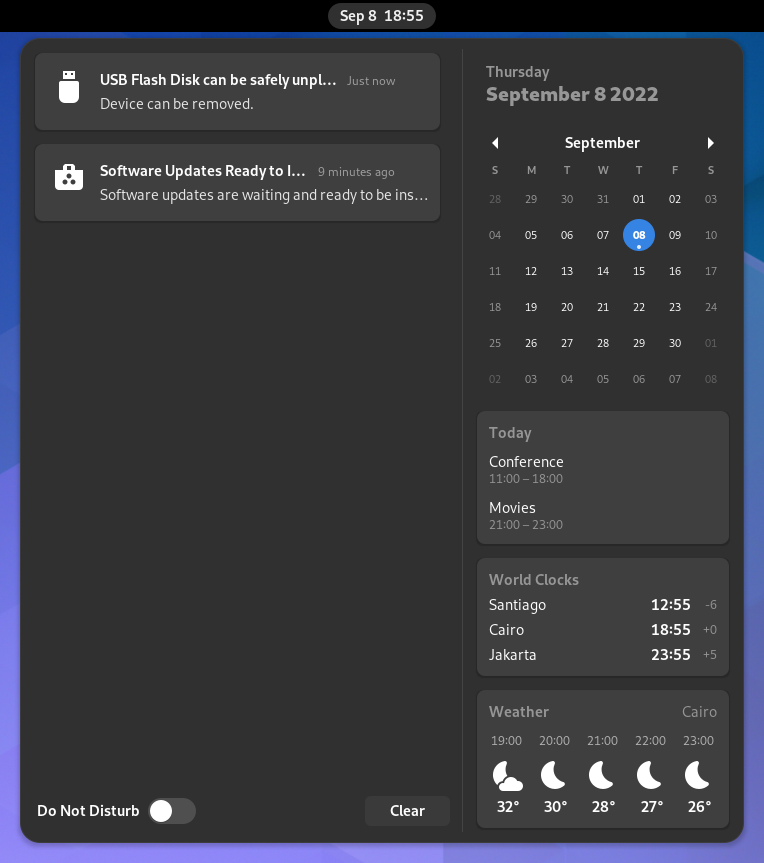
Click the clock on the top bar to see the current date, a month-by-month calendar, a list of your upcoming appointments and new notifications. You can also open the calendar by pressing Super+V. You can access the date and time settings and open your full calendar application directly from the menu.
Sistemos meniu
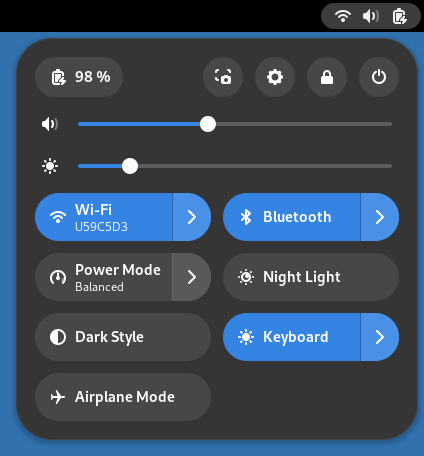
Click the system menu in the top-right corner to manage your system
settings and your computer. The top part of the menu shows the battery
status indicator, and buttons to launch Settings and the screenshot tool. The
 button allows you to suspend or power off the computer, or
quickly give somebody else access to the computer without logging out
completely. Sliders allow you to control the sound volume or screen
brightness.
button allows you to suspend or power off the computer, or
quickly give somebody else access to the computer without logging out
completely. Sliders allow you to control the sound volume or screen
brightness.
The rest of the menu consists of Quick Settings buttons which let you quickly control available services and devices like Wi-Fi, Bluetooth, power settings, and background apps.
Ekrano užrakinimas
Užrakinus ekraną arba ekranui užsirakinus automatiškai, įsijungia užrakinimo langas. Jis ne tik apsaugo jūsų failus ir darbalaukį kai nedirbate kompiuteriu, bet rodo ir datą bei laiką. Lange taip pat matysite baterijos ir tinklo būklę.
Langų sąrašas
GNOME siūlo kitokį metodą perjungti veikiančias programas ir langus nei pastoviai matomas atvertų langų sąrašas, naudojamas kai kuriose kitose operacinėse sistemose ar darbalaukio aplinkose. GNOME siūlomas metodas leidžia nesiblaškant sutelkti dėmesį į dabar vykdomą užduotį.